
Email Templates
Overview
Email templates define the content and structure of system-generated emails sent during post-purchase and service processes. Each template is assigned to a specific context, which determines how the primary recipients are resolved. Additional recipient types can be configured within the template settings.
Email templates are configured per portal and can be found under: System Settings > Return Portal > Select the Service Portal > Edit > Email Templates
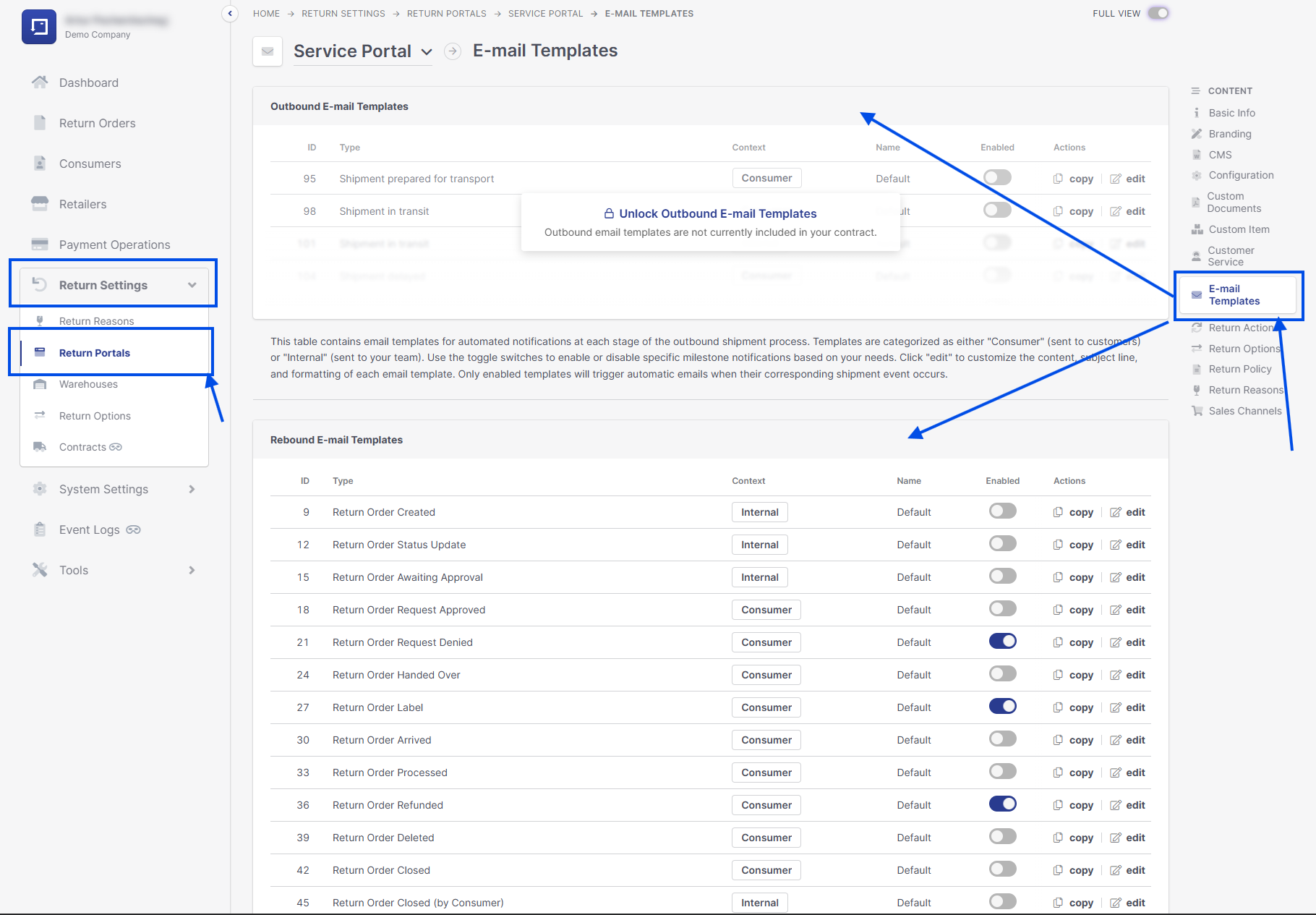
The Rebound Email Templates are always available, while Outbound Email Templates may be unavailable due to missing contractual agreements.
Following actions are availble:
- Enabled (Yes/No): If enabled, the email template is active and will be sent to the consumer once the configured trigger step is reached.
- Copy: Creates a copy of an existing email template.
- Edit: Opens the email template for modification (see "Customize Email Template" for more information).
Contexts
Consumer
Emails in the Consumer context are sent to the consumer assigned to the service order.
The service order contains the consumer’s email address, and this address is always used as the recipient. No manual configuration of recipients is required. (The consumer's email address can be changed in the management portal).
This context supports exactly one dynamically determined recipient.
Internal
Emails in the Internal context do not have dynamically resolved recipients.
Instead, recipients must be explicitly defined within the template.
Three options are available:
Users
Any user account in the platform can be selected. These users receive the email whenever the template is triggered.
Groups
A group can be selected as a recipient. All platform users assigned to that group receive the email.
Custom Recipients
Custom recipients are manually entered email addresses that receive the email for every occurrence of the trigger event.
They are independent and do not need to belong to the platform.
- One or multiple addresses can be defined.
- All configured addresses receive every email generated from the template.
- Suitable for external departments, partners, shared mailboxes, or specialized recipients.
- This context is used for operational notifications, internal workflows, and process monitoring.
Customize E-Mail Template
If you click "Edit" on any email template, a new modal window will appear where you can customize the content. Standard content is provided for each email template; however, we encourage you to adapt the text to reflect your company's tone and communication style toward your customers.
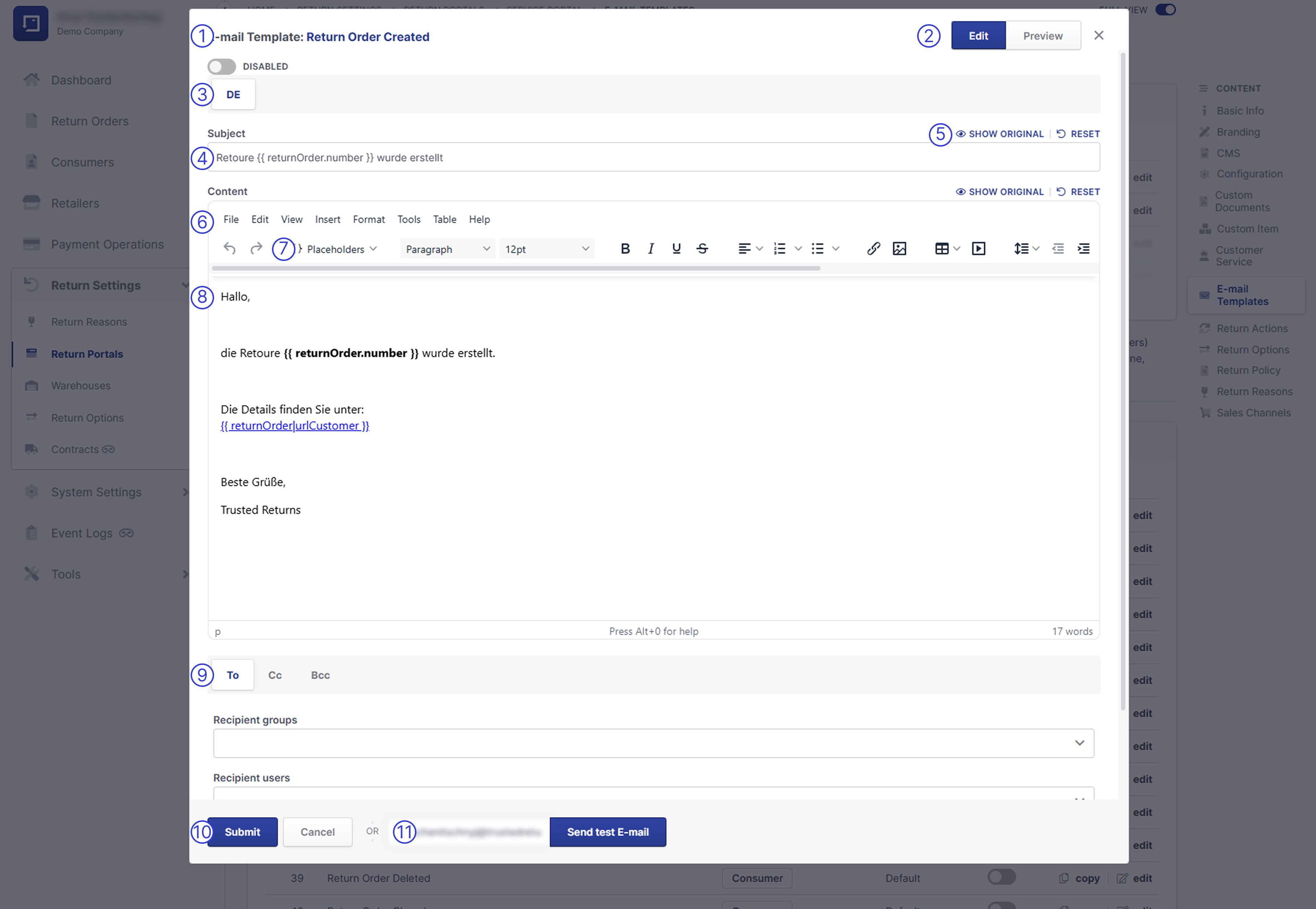
Here is an overview of the available options within the Email Template modal:
- Template Name: Displays the name of the email template
- Edit / Preview: Switch between editing and preview mode. "Edit" allows you to modify the email content, while "Preview" shows how the email will appear with the applied design (see "Email Template Design" for more information).
- Languages: If your portal supports multiple languages, content changes must be applied separately for each language.
- Subject: Defines the subject line of the email template. Variables can also be used here (see "Using Variables").
- Standard Content: Displays the original default content and provides the option to reset the template to its standard version. A notification will appear if the content differs from the default text..
- Content Editor: Use the content editor to customize the body of the email template. You can adjust the text, formatting, and dynamic placeholders to match your company's communication style.
- Variables: Variables are dynamic placeholders that are automatically replaced with customer- or process-specific information when the email is generated (see "Using Variables").
- Email Content: The main body of the email. Various formatting options and variables can be used here.
- Recipients: Define who will receive the email. For internal emails, the "To" field is available.For non-internal emails, only "CC" and "BCC" are available. CC" and "BCC" function the same way as in standard email applications. Available recipient types:
- Recipient groups: Select predefined recipient groups
- Recipient users: Select individual users
- Custom recipient: Define a custom email recipient.
- Submit / Cancel: "Submit" saves your changes, while "Cancel" closes the modal without saving.
- Test Email: Your returns.cloud registered email address is prefilled and can be used to send a test email. This works even if the email template is currently disabled.
Using Variables
Variables are placeholders that automatically insert dynamic information into an email when it is sent. By clicking on "{} Placeholders", a menu containing all available variables will open. Note: Available variables may differ depending on whether the template is a Rebound or Outbound Email Template.
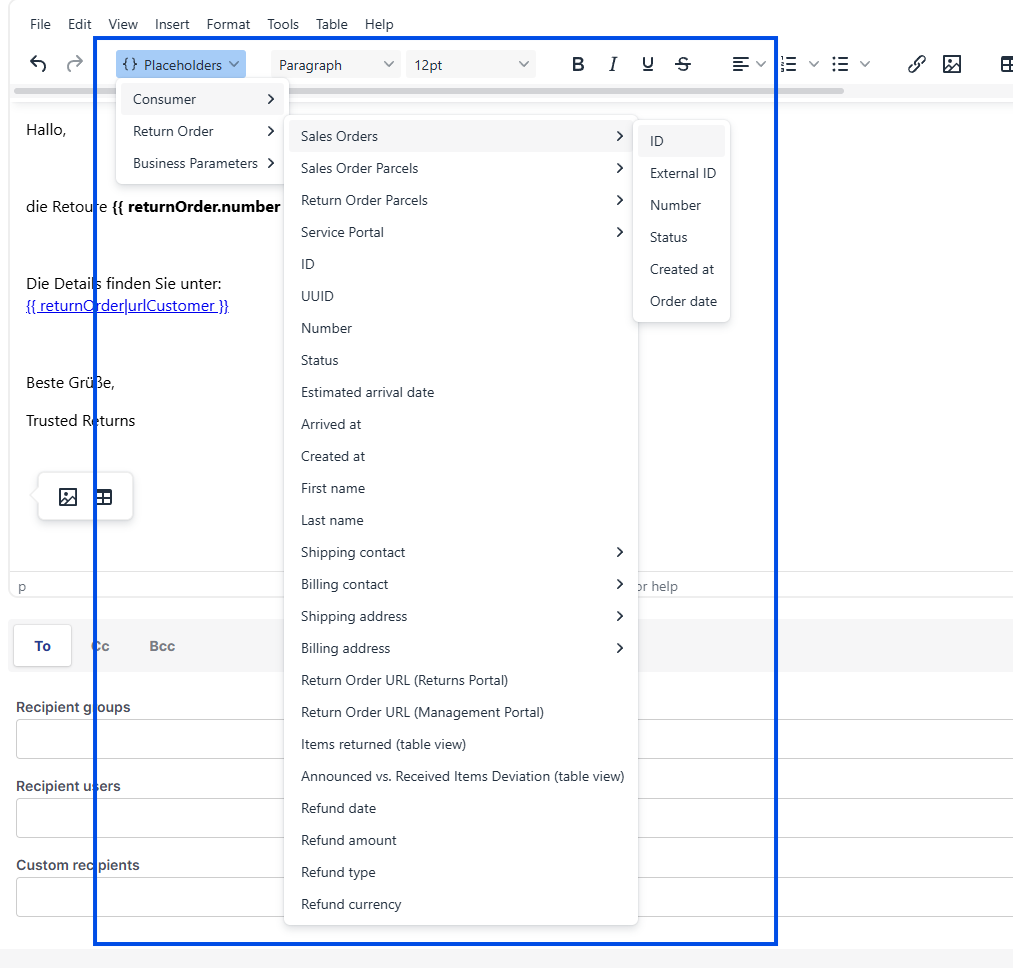
When you select a variable, it will be inserted into the email content in the format {{ variable-name }}. Using the "Preview" option in the top-right corner allows you to see how the variables are rendered into actual content. As mentioned previously, variables can also be used in the email subject.
E-Mail Template Design
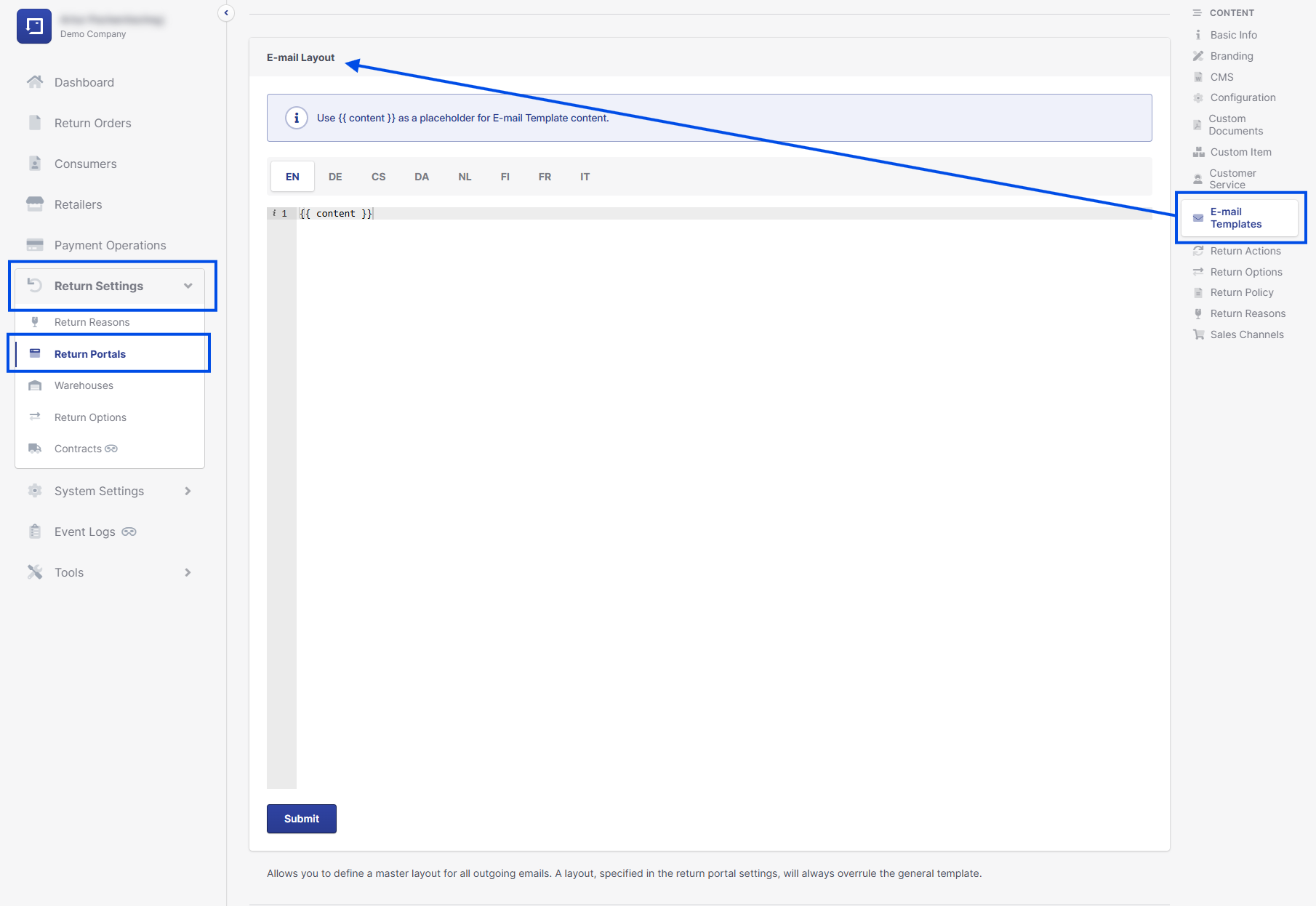
On the same page, you will find the Email Layout section below "Rebound Email Template". As mentioned previously, you can preview an email at any time. If you provide a design based on HTML and CSS, the design will be applied directly to the email preview and all generated emails.
Please note that if no design is provided, emails will be sent without custom styling. For every enabled language, the design must be provided separately in the corresponding language configuration.
The {{ content }} variable must be included somewhere within your HTML markup. This variable indicates where the content from the Email Templates (Outbound and Rebound) should be inserted by the system.
We recommend using HTML markup that is optimized for cross-browser and cross-device compatibility, including support for older email clients.
Recipient configuration
Mails in any context can be configured to be sent to several receipients. For context "consumer" at least the consumer's mail address is set and mandatory to receive any mail. But for mails in context "internal" must be a reciever configured.
Sender Configuration
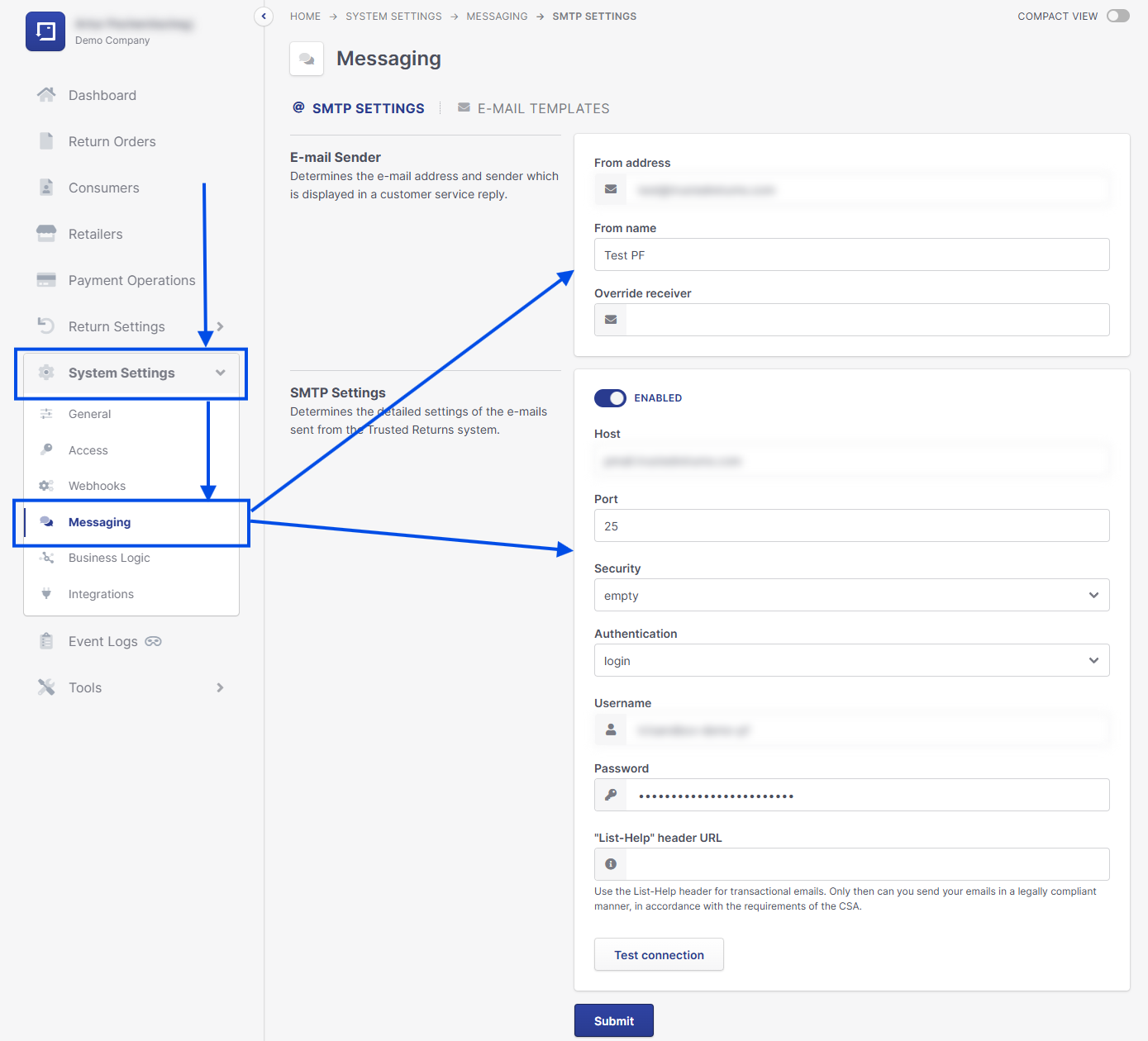
The sender name and sender email address for all email templates follow a hierarchical resolution model. If you have multiple Portals and multiple STMP-Servers we recommend to use the Portal-Level Sender and STMP-Settings. If you only have one portal then the Platform-Level Sender and STMP-Settings are sufficient.
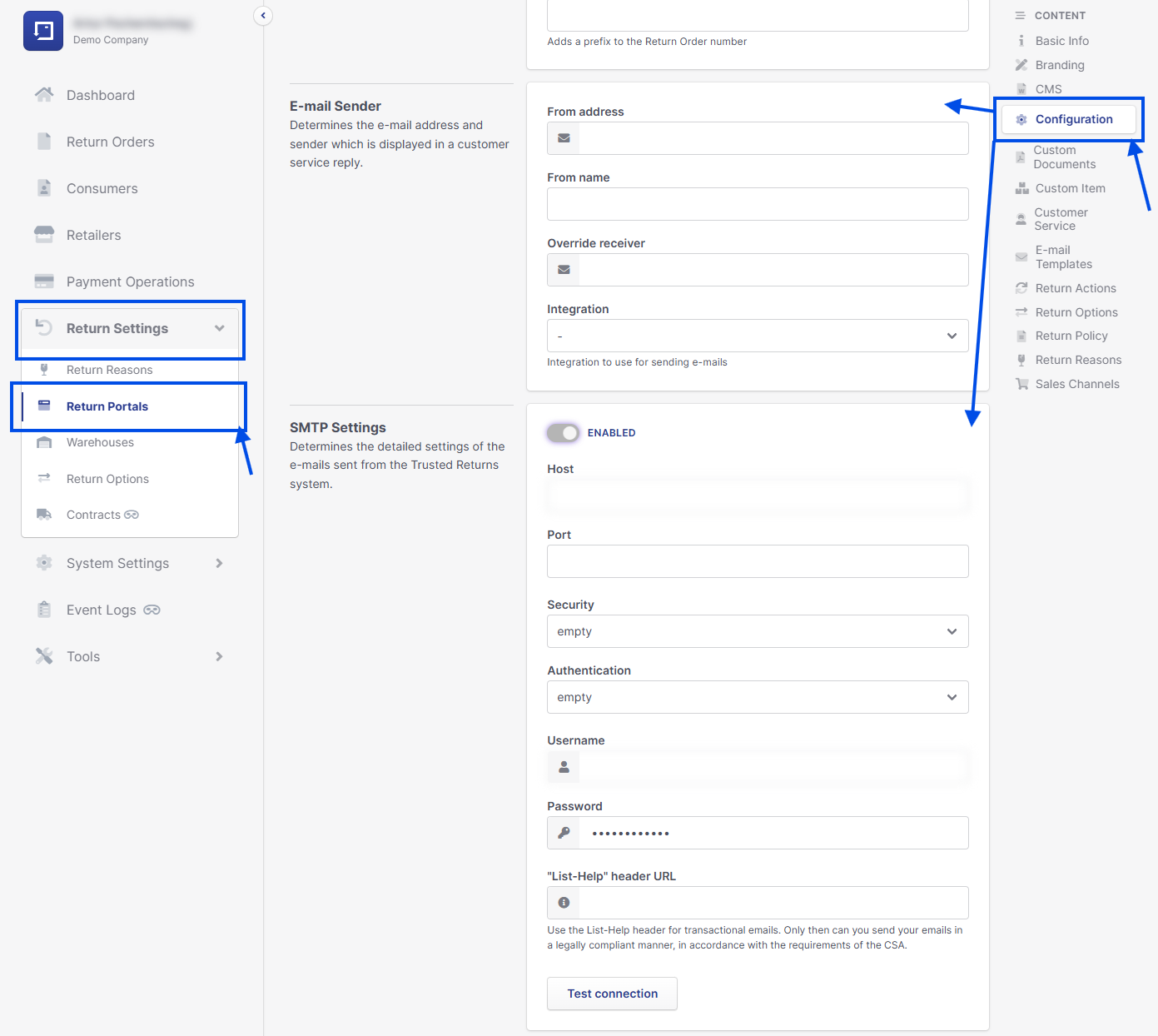
Portal-Level Sender and SMTP Settings
Each portal can define:
- SMTP server configuration
- Sender display name
- Sender email address
If set, these values apply to all emails generated from templates within that portal. The configuration of the portal STMP can be found under Return Settings > Return Portals > Edit on one of the portal > Configuration - Section: E-mail Sender and STMP-Settings:
Platform-Level Defaults
If no portal-level configuration exists, the platform-wide SMTP and sender settings are used. The System-wide configuration can be found in the main menu under System Settings > Messaging:
System Fallback
If neither portal nor platform has any sender configuration:
Sender: [email protected]
This ensures that email dispatch remains functional under all circumstances.
Summary
- Each template can be activated or deactivated individually.
- The template’s context defines how primary recipients are resolved.
- Internal context requires explicit recipient definition; consumer context uses the consumer’s stored email address.
- Sender information is always derived from the configuration hierarchy: Portal → Platform → Fallback.
- If you want to learn more about the templates itself check out the Rebound and Outbound Events