
Contacting returns.cloud Support
Contact us by email
Send your request to the support email address provided during your onboarding call.
Please include:
- A clear description of your request or issue
- The affected order, return, or service order number
- tracking number, if the request iss parcel related
- Relevant screenshots or error messages
- The steps you performed to reproduce the reported issue
Your email is automatically created as a ticket in our support system. You will receive updates by email and can reply directly to continue the conversation.
Access returns.cloud Support
Open returns.cloud Support:
https://support.returns.cloud/
Important: LinkedIn and Microsoft OAuth login are currently not supported.
Access your account for the first time
You may already have an account associated with your email address if you previously contacted our Support Team by email.
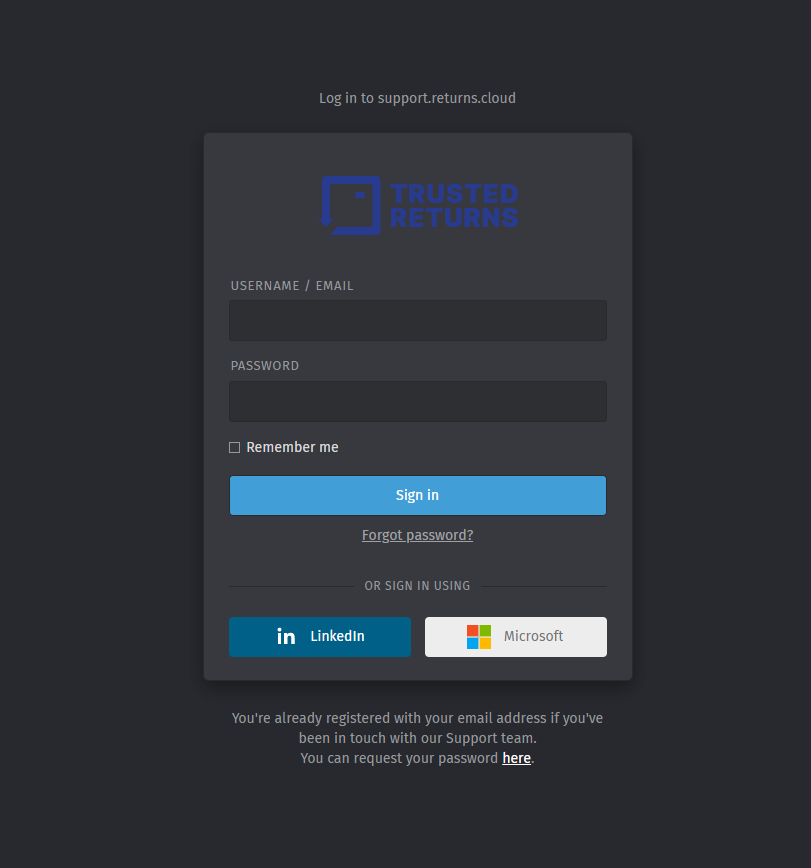
To access your account:
- Open returns.cloud Support.
- Below the login mask click on "here" at "You can request your password here".
- Enter the email address you previously used to contact our Support Team.
- Open the password reset email and define a new password.
- Return to returns.cloud Support and sign in with your email address and password.
If no account is found, contact our Support Team via email using the email address provided during onboarding.
Create a new ticket
After signing in:
- Create a New Ticket by clicking on the green '+' sign bottom left.
- In the middle of the screen select below "New Ticket" > "Send Email". Enter a short and descriptive title.
- Describe your request in detail under Text.
- Add relevant order numbers, service order numbers, screenshots, or files.
- Submit the ticket by clicking on "create".
A member of our Support Team will review your request and respond within the ticket.
Navigate returns.cloud Support
After signing in, you can:
- View your open and previously submitted tickets.
- Check the current status of a request
- Read responses from the Support Team
- Add further information or attachments
- Reply to an existing ticket
- Create a new ticket
To avoid duplicate requests, add new information to an existing ticket whenever it relates to the same topic.
Ticket updates and email notifications
You will receive an email notification when your ticket is created or updated.
You can respond in either of the following ways:
- Reply directly to the notification email
- Sign in to returns.cloud Support and respond within the ticket
Both methods update the same support ticket.